
NOL Card Balance Check
Enter your 10-digit NOL Tag ID below to check your balance, expiry, and card information online.
If your balance is low, you canrecharge before starting your journey.

How to Check Your NOL Card Balance
Checking your NOL card balance online only takes a few steps. All you need is the 10-digit Tag ID printed on your physical NOL card.
Swipe to see all 4 steps

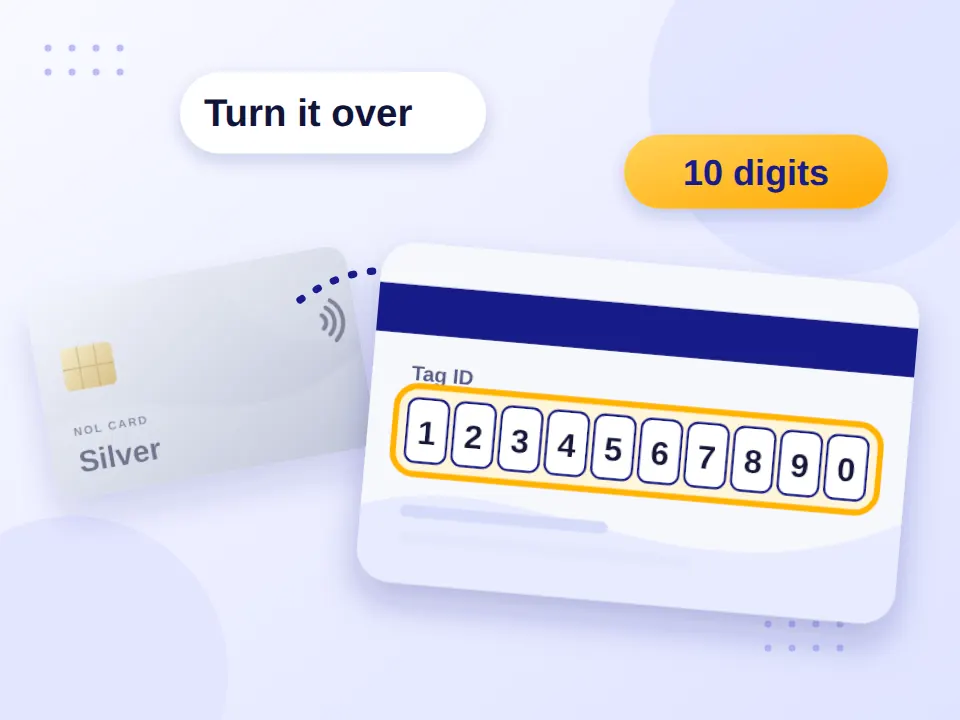
Find your Tag ID on the back of your card.
Enter the number in the balance checker above.
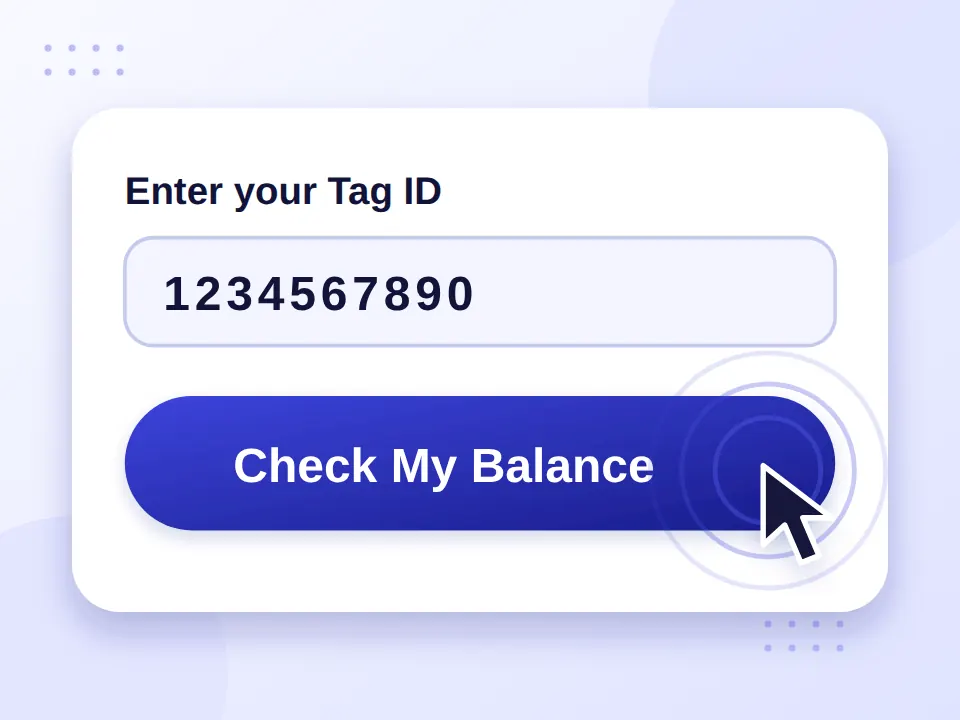
Click “Check My Balance.”
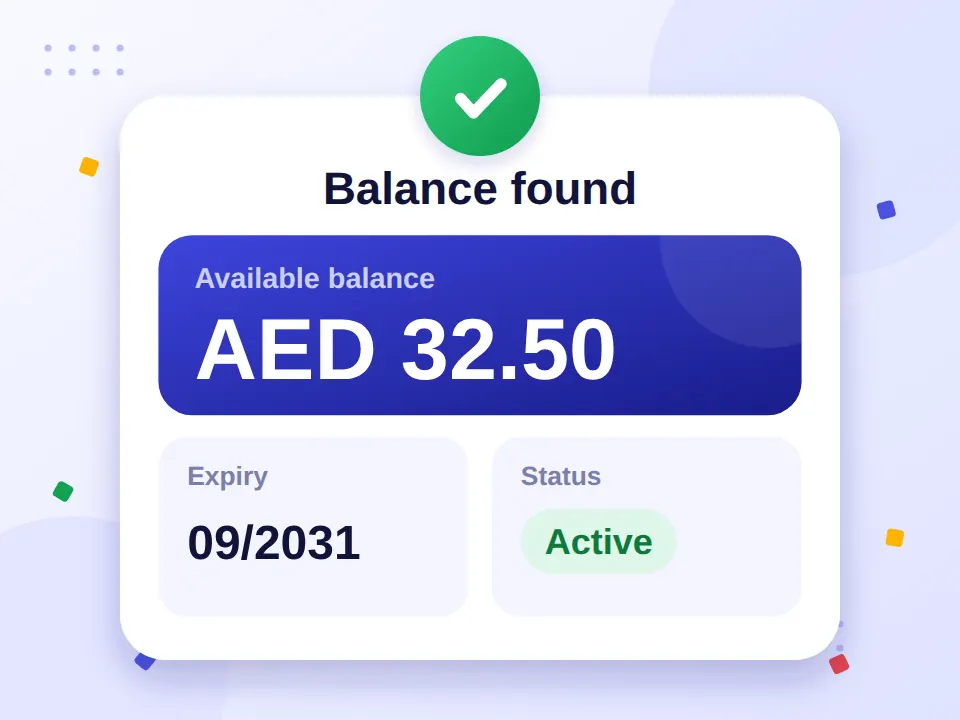
View your available balance and other card information shown in the results.
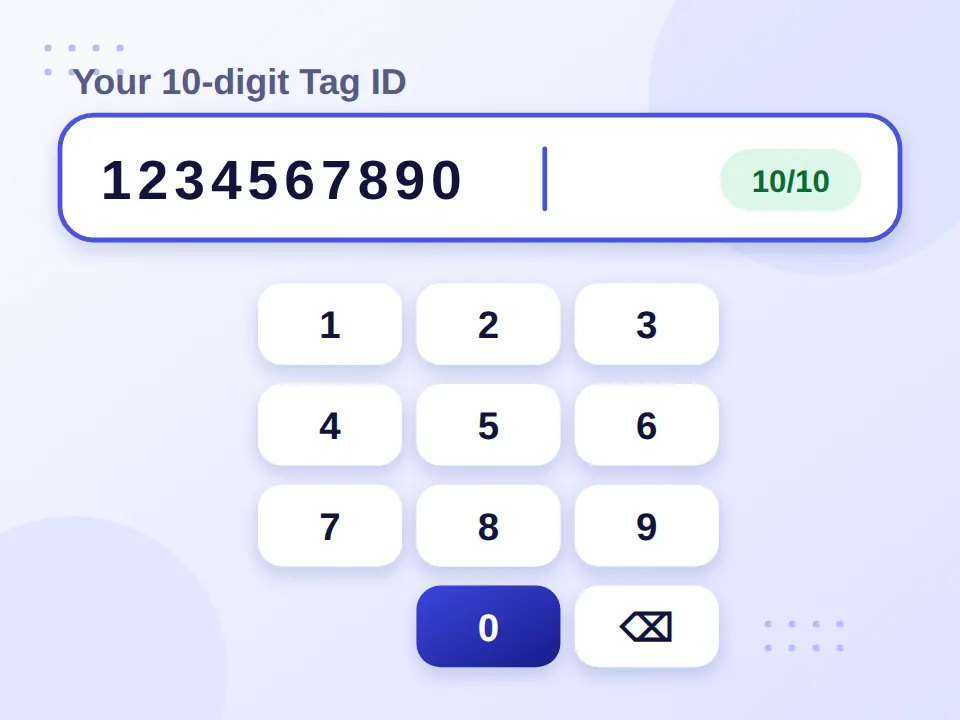
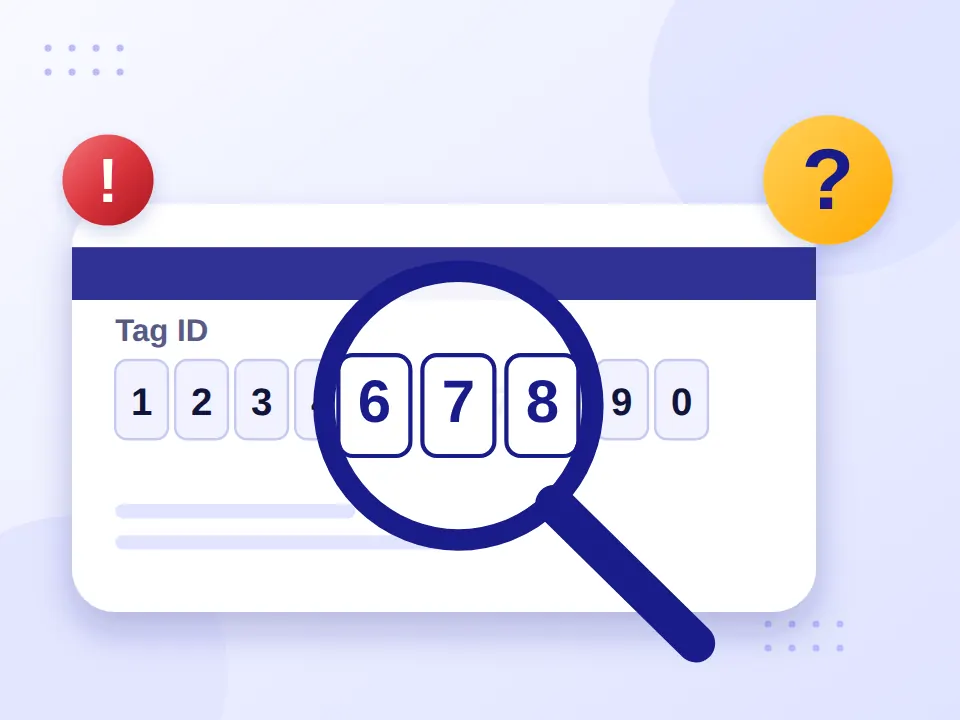
Enter the number carefully and make sure you do not miss any digits. If the Tag ID is incorrect, your card may not be found.
You can check your balance at home, at work, or while you’re on the go. A mobile browser works too, so you don’t have to wait until you’re at a Dubai Metro station to find out how much credit is left.
- At home
- At work
- On the go
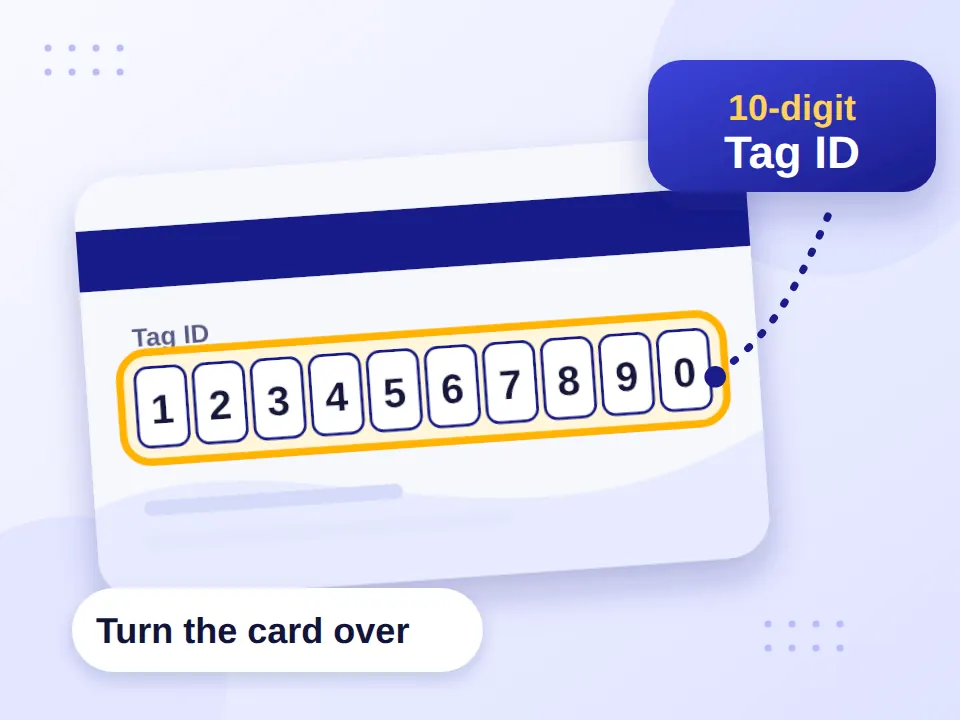
Where to Find Your NOL Tag ID
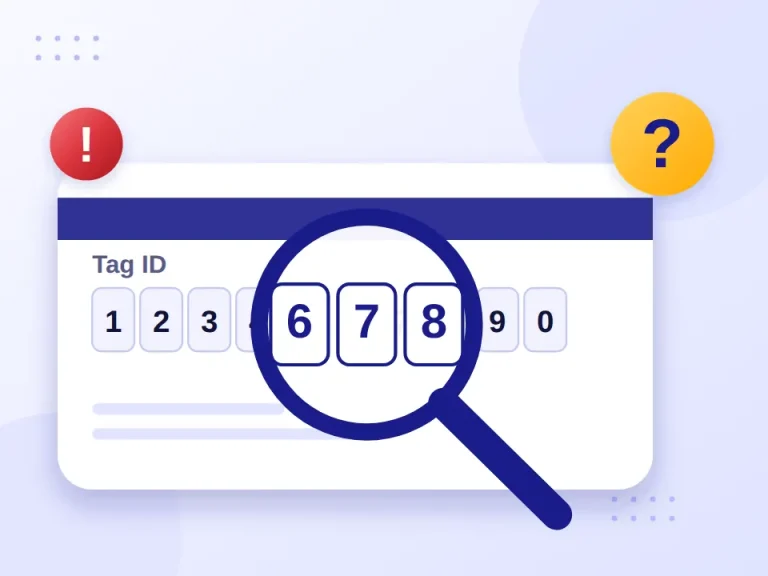
Your NOL Tag ID is the 10-digit number printed on your physical card. Turn the card over and look for the long number on the back.
You may need this number when using an online NOL card balance check or other NOL services.
Don’t confuse the Tag ID with:
- Your card PIN
- A top-up receipt number
- A transaction reference
- An application number
If the numbers are difficult to read, check each digit carefully before entering it.
How to Check NOL Card Balance on Mobile
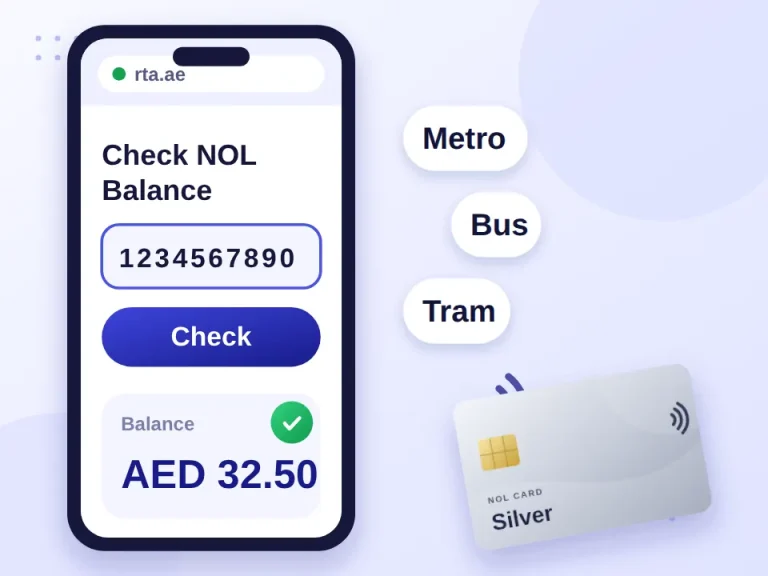
You can check your NOL card balance on your phone without using a computer. Open the balance checker in your mobile browser, enter your 10-digit Tag ID, and submit the request.
This is a convenient option when you’re away from home and want to check your balance before taking the Dubai Metro, Bus, or Tram.
- Metro
- Bus
- Tram
If your phone supports NFC, you can also use the NOL Pay app to read a compatible physical NOL card.
Get NOL Pay on Google Play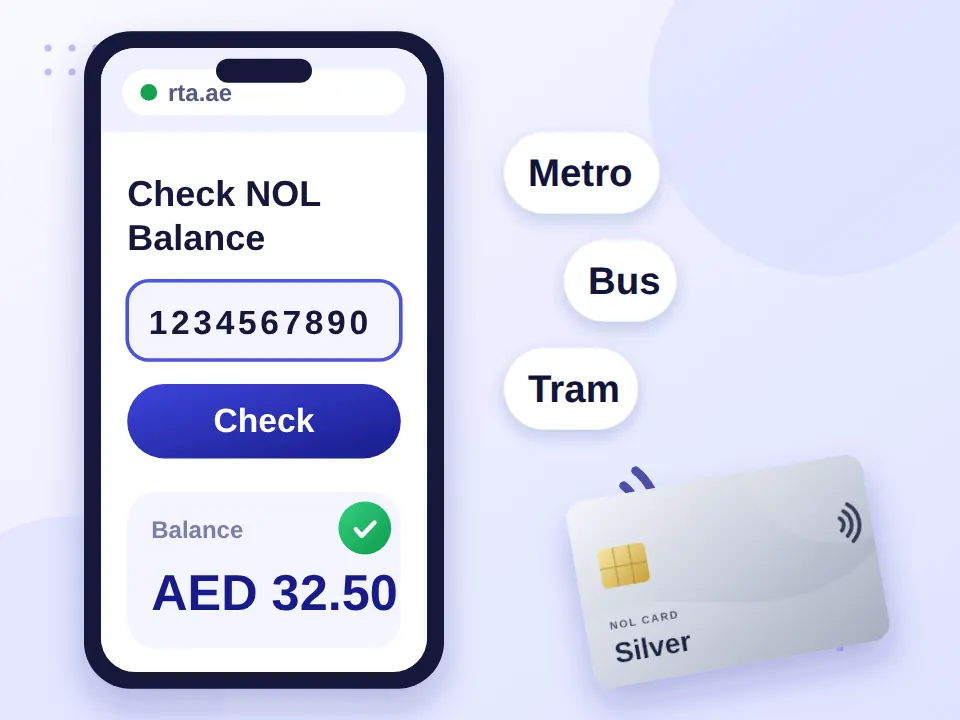
Check Your NOL Card Balance with NOL Pay and NFC
NOL Pay gives you another way to check your card using a compatible NFC-enabled phone.
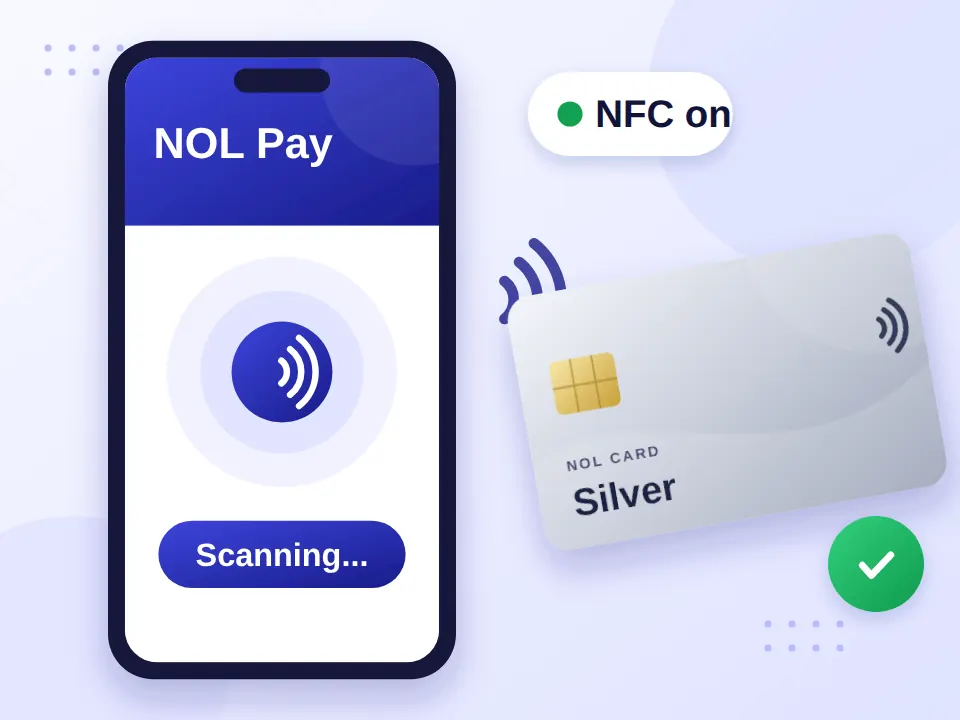
- 1
Open the NOL Pay app.
- 2
Turn on NFC in your phone settings.
- 3
Place your physical NOL card against the NFC area of your phone.
- 4
Keep the card still while it is being scanned.
- 5
Review the card information shown in the app.
NOL Pay is particularly useful if you regularly use NOL services and want to manage your card from your phone.
Other Ways to Check Your NOL Card Balance
If you don’t want to use a mobile browser or NOL Pay, you have several other options for checking your card.
Swipe to see all 4 ways
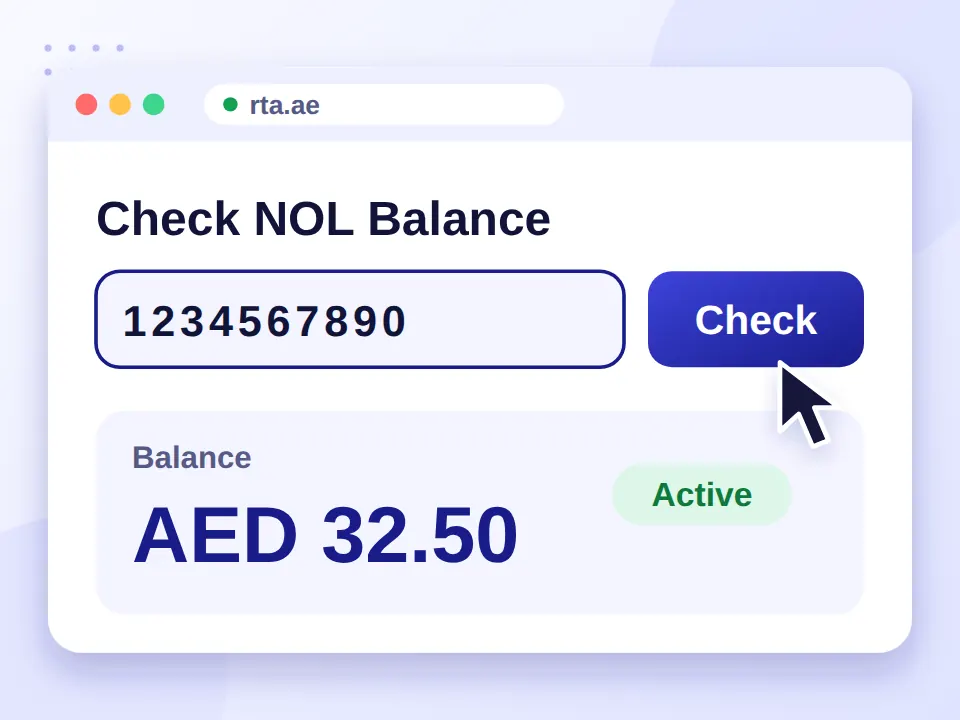
RTA Website
You can check your NOL card information through the RTA website. Open the NOL section, select the relevant balance service, enter your Tag ID, and follow the instructions shown on screen.
This is a useful choice if you prefer to use RTA’s online services directly.

RTA Dubai App
The RTA Dubai app provides access to NOL services along with other transport-related features. If you already use the app, you can check the available NOL services without switching to another website.
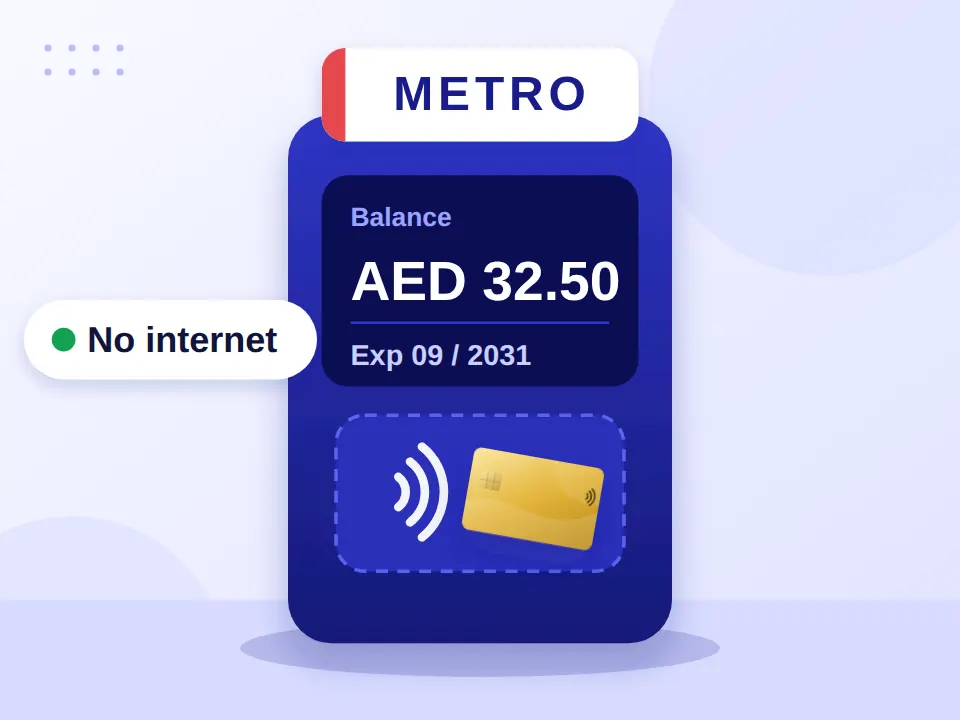
At a Metro Station Kiosk
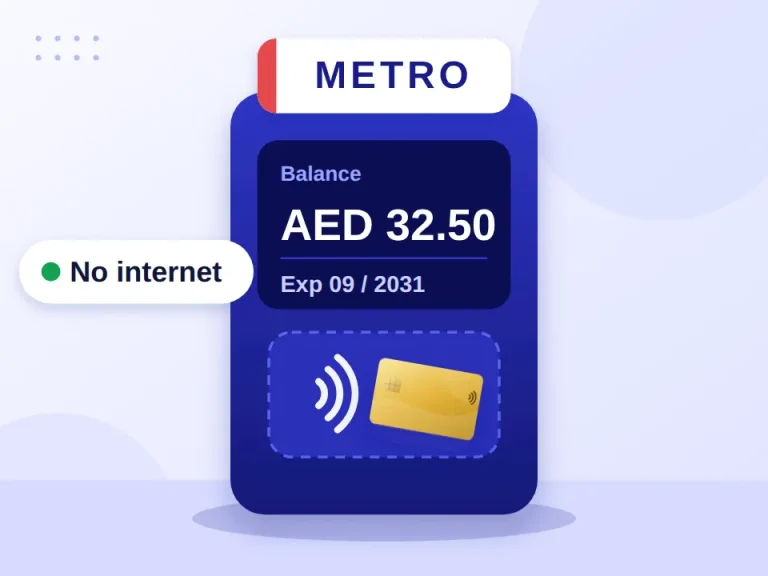
You can check your NOL card balance at a Metro station kiosk or NOL card reader. Simply place your card on the designated reader and follow the instructions on the screen.
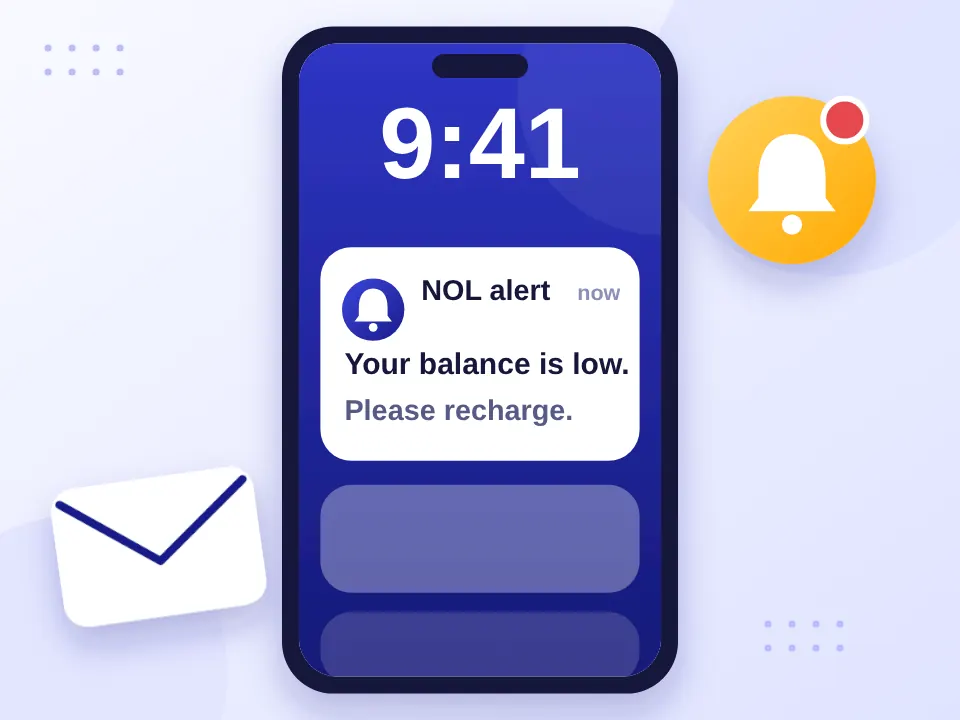
SMS Balance Alerts
You cannot check your NOL card balance by sending an SMS command to RTA. However, NOL users may receive automatic low-balance SMS alerts when the card is set up for notifications through RTA’s digital services.
NOL Card Balance Check Methods Compared
| Method | Internet Needed | Best For |
|---|---|---|
| Online balance checker | Yes | Quick checks from anywhere |
| NOL Pay + NFC | Yes | Checking on a compatible phone |
| RTA website | Yes | Direct RTA online services |
| RTA Dubai app | Yes | Existing RTA App user |
| Metro kiosk / reader | No | Checking at station |
| SMS alerts | No | Automatic low-balance notifications |
For a quick check of your NOL card balance, the online option is usually the simplest. If you regularly use your card and have an NFC-enabled phone, NOL Pay can be more convenient.
What Is the Minimum NOL Card Balance?
For standard travel on the Dubai Metro, Bus, and Tram, you generally need at least AED 7.50 available on your NOL card.
This is a minimum balance requirement, not a fixed fare. Your actual cost depends on your journey and the zones you travel through. Keeping extra credit can help avoid rejected taps.

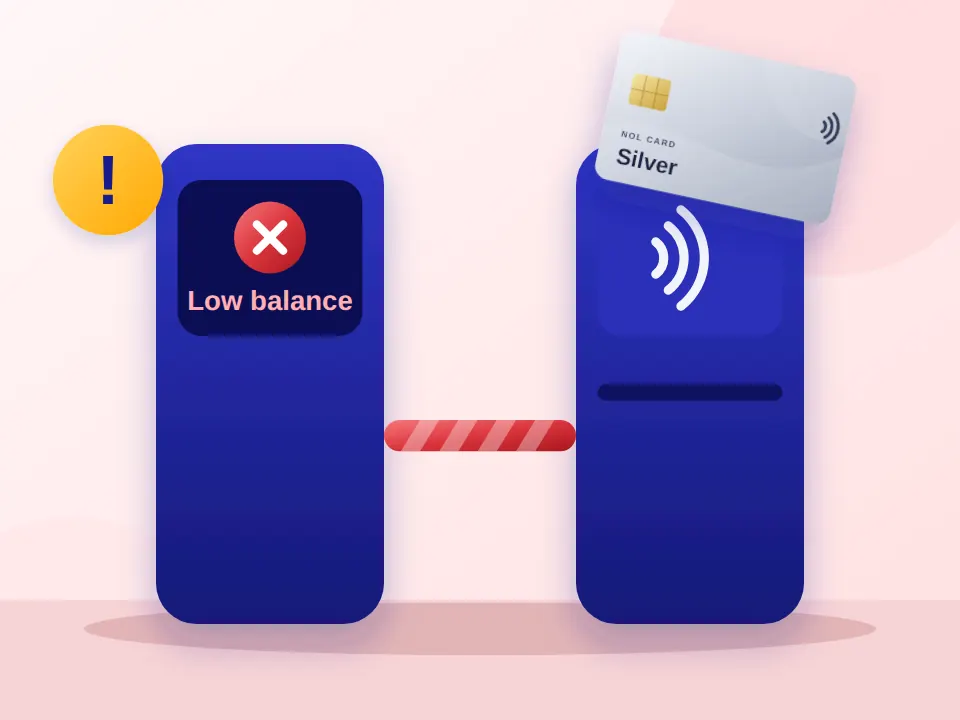
What Happens If Your NOL Card Balance Is Too Low?
A low balance can stop your NOL card from working when you need it most. If there isn’t enough available credit for your journey:
Metro
The gate may not open when you tap your card.
Bus or Tram
The reader may reject your card.
After a recharge
A recent top-up may still be pending and unavailable for travel.
If your balance is low, recharge your NOL card before travelling and check again to make sure the new credit is available.
NOL Card Balance, Expiry Date and Transaction History
A balance check may also show more than the credit on your card, depending on the service.
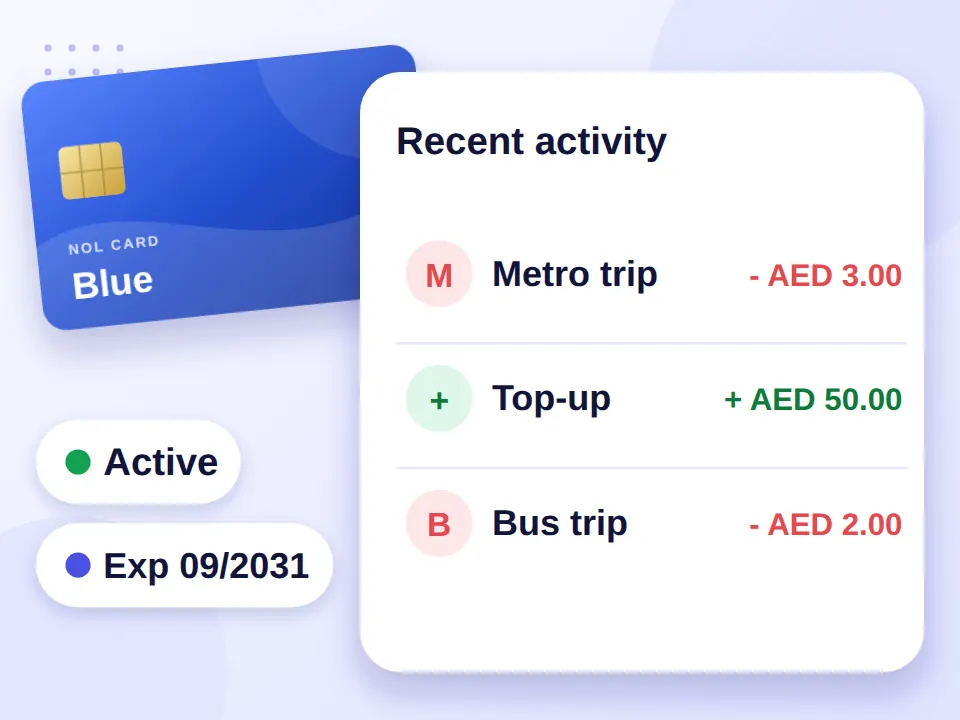
NOL Card Expiry Check
Your NOL card has a validity period. Checking the expiry date is useful if you’ve had the same card for several years or are planning a trip.
If your card has expired, follow the applicable RTA process for renewal or replacement rather than relying on it for travel.
NOL Card Transaction History
If you want to see where your balance went, transaction history can be more useful than a basic balance check. Depending on the service available to you, you may be able to view recent trips, fare deductions and top-ups.
The NOL Pay app can be useful for users who want to manage their card and review available transaction information from their phone.
What Does Pending Credit Mean on NOL?
If you see pending credit, it generally means a recharge has been processed, but the amount has not yet been transferred to the physical card for use.
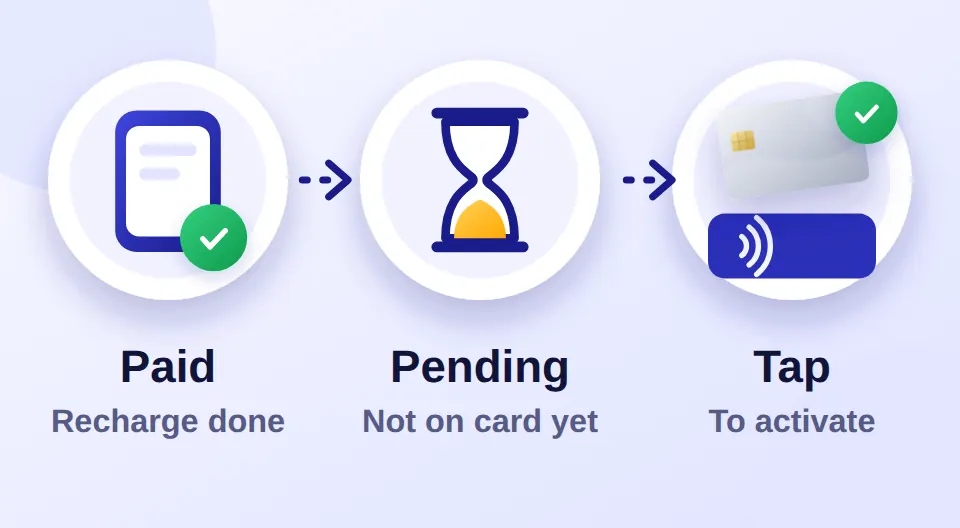
This is important after an online NOL card recharge. A successful payment does not always mean the new credit is immediately available for travel.
If your top-up is pending:
Confirm that the recharge was successful.
Allow time for the transaction to process.
Use a compatible NOL reader or machine if activation is required.
Check your balance again before travelling.
Need help with recharging? See our complete NOL Card Recharge Guide for more information.
NOL Card Recharge GuideNOL Card Types
Not sure which NOL card is right for you? Compare the main NOL Card options below and find the one that fits your travel needs.
Swipe to compare all 4 cards

Silver NOL Card
AED 25- Validity
- 5 years
- Best for
- Daily commuters

Gold NOL Card
AED 25- Validity
- 5 years
- Best for
- Gold Class travel

Blue NOL Card
AED 70- Validity
- 5 years
- Best for
- Personalised use & eligible discounts

Red NOL Ticket
AED 2- Validity
- 90 days
- Best for
- Tourists & short trips
Common NOL Card Balance Problems
Tap your problem to see the quick fix.
My NOL balance is not showing
First, check your 10-digit Tag ID and make sure every number is correct. Then try the balance check again.
My recharge is not showing
Your top-up may still be pending or may require activation. Check the status and use a compatible reader if required.
NOL Pay cannot read my card
Make sure NFC is enabled on your phone and place the card against the correct NFC area. Phone compatibility can also affect NFC reading.
My NOL card is expired
An expired card may need to be renewed or replaced. Follow the current RTA process for your card type.
The balance checker is not working
Try again later or use another available method, such as NOL Pay, the RTA website, or a station machine.
Latest Guides
Step-by-step help for recharging, renewing, refunds, fares, timings and every other part of using your NOL card in Dubai.
- NOL Card Apple Wallet: Can You Add NOL to Your iPhone?
 NOL isn’t supported in Apple Wallet yet. Here’s what iPhone users can do instead: Apple Pay for top-ups and nol Pay to scan and manage a physical card.
 - NOL Card Refund in Dubai: How to Get Your Balance BackHow to refund your NOL card balance in Dubai, including eligibility, online steps, fees, timings, status checks and overcharge claims.
- Lost NOL Card in Dubai? How to Report, Block, Refund & Replace ItLost your NOL card? How to report and block it with RTA, check the balance, recover your money and get a replacement card.
FAQs About NOL Card Balance Check
Quick answers about checking your NOL card balance.
Can I check my NOL card balance with the card number?
Yes, if the service asks for your card’s Tag ID, you can use the 10-digit number printed on the back of your NOL card. Enter it exactly as shown to check the available card information.
What does pending credit mean on a NOL card?
Pending credit usually means a recharge has been processed but has not yet become available on your physical card. If you’ve recently topped up online, you may need to wait for processing to complete or activate the amount using a compatible NOL reader.
Can I check my NOL card balance after a recharge?
Checking your balance after a recharge lets you confirm whether the new credit is available for travel. If the amount is still pending, don’t rely on it until it has been added to your available balance.
Why is my NOL card balance not showing?
Check that you entered the correct 10-digit Tag ID. If the number is correct and your balance still does not appear, try again later or use another available NOL or RTA service.
Can I check my NOL card balance without the physical card?
Yes, if you still have your 10-digit Tag ID, you may be able to check your card information through a supported online service without the physical card.
Can I check my NOL card transaction history?
Depending on the service you use, you may be able to view recent trips, fare deductions, and top-ups. NOL Pay can be useful for managing your card and viewing available transaction information from your phone.
What should I do if my NOL card balance is too low?
Recharge your NOL card before travelling. If you’ve just made an online top-up, check whether the credit is available or still pending before relying on it for your journey.